How to Password Protect an Excel Worksheet
In today’s digital age, protecting sensitive information is more crucial than ever. Microsoft Excel is a widely used tool for managing data, but without proper security measures, your worksheets can be vulnerable to unauthorized access. Password protection is an effective way to safeguard your Excel files, ensuring that only authorized users can view or edit the contents. This article will guide you through the steps to password protect an Excel worksheet effectively.
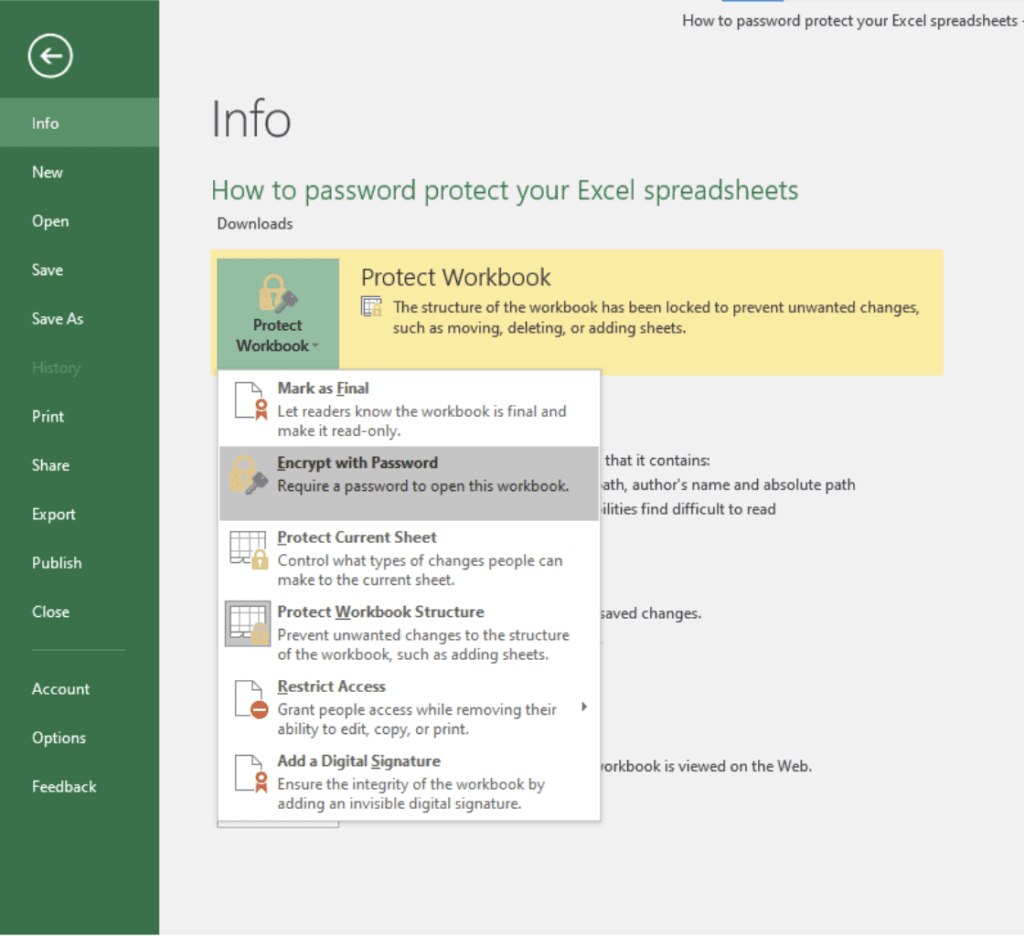
By implementing password protection, you can maintain the confidentiality of your data and prevent accidental modifications. Whether you are working on financial reports, personal information, or any other sensitive data, knowing how to secure your Excel worksheets is essential. This guide will provide you with clear instructions on how to set up password protection in Excel, making it easier for you to keep your information safe.
How Do You Password Protect an Excel Worksheet
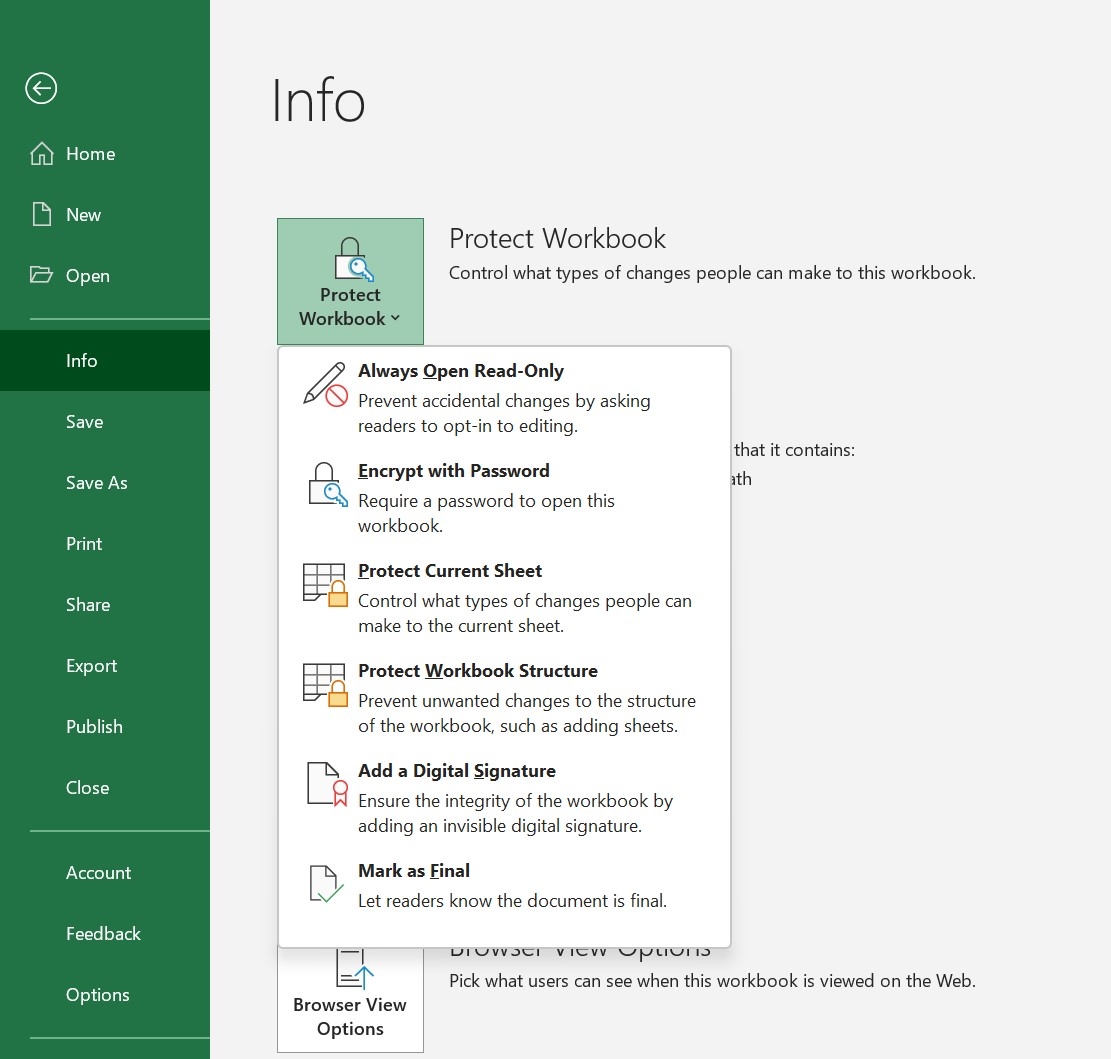
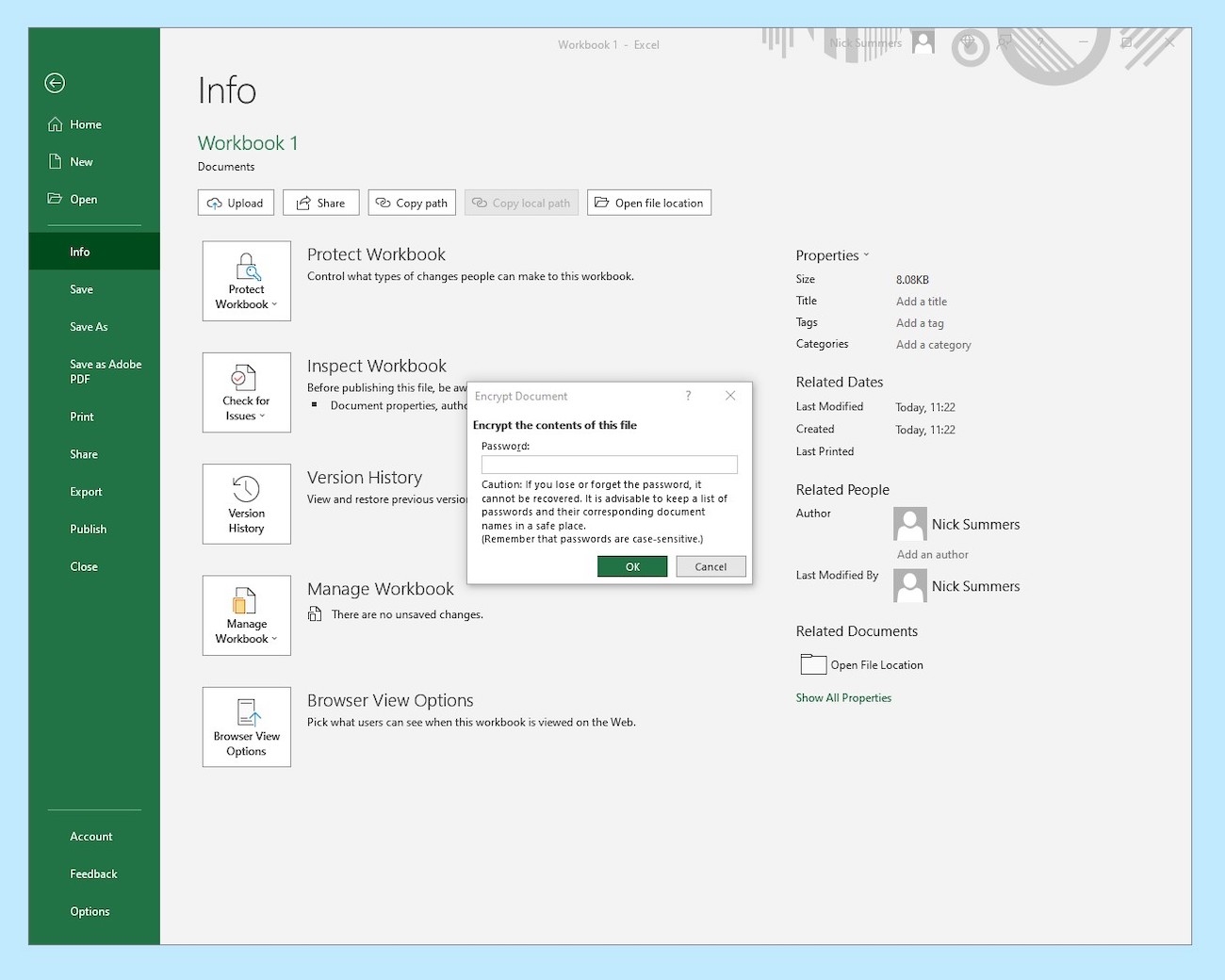
Password protecting an Excel worksheet involves a few straightforward steps. First, open the Excel file you wish to protect. Once the file is open, navigate to the worksheet that contains the data you want to secure. It is important to note that password protection can be applied at both the workbook and worksheet levels, but this guide focuses specifically on worksheet protection.
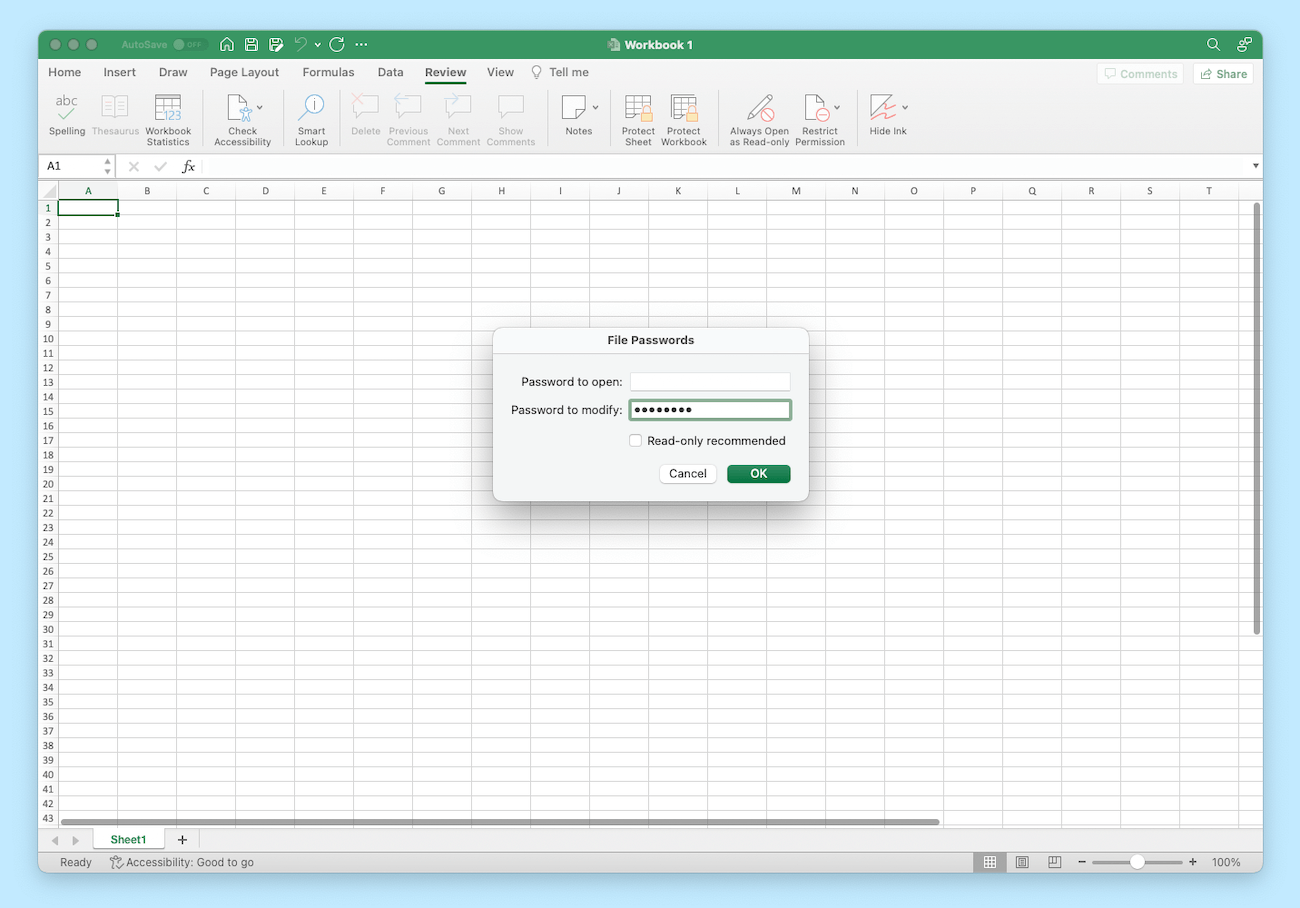
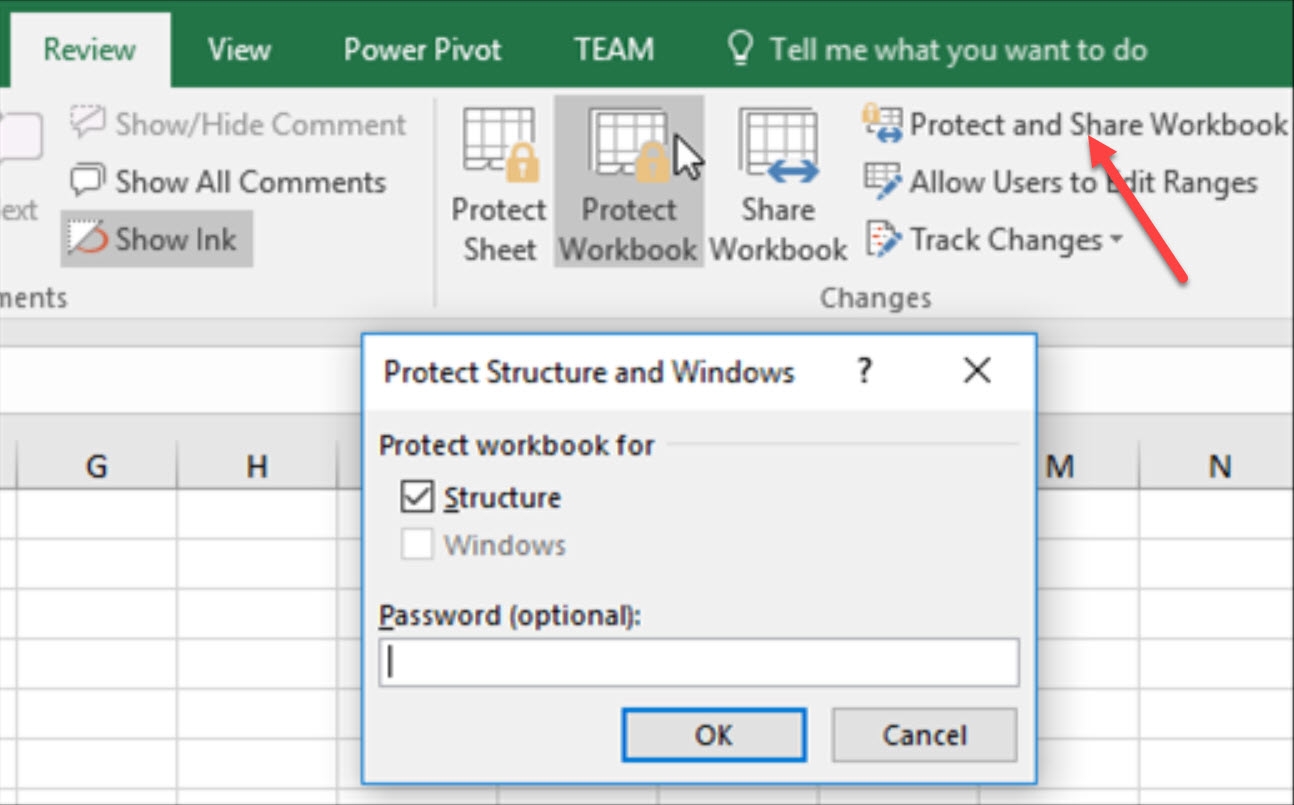
To begin the process, click on the “Review” tab located in the ribbon at the top of the Excel window. In this tab, you will find an option labeled “Protect Sheet.” Click on this option to open a dialog box where you can set your password. Enter a strong password that combines letters, numbers, and special characters to enhance security. After entering your desired password, confirm it by re-entering it in the provided field.
Once you have set your password, you can also customize permissions for users who may access the worksheet. This allows you to specify what actions are allowed, such as selecting locked or unlocked cells. After configuring these settings, click “OK” to apply the changes. Your worksheet is now protected, and anyone attempting to edit it will need to enter the correct password.
If at any point you wish to remove the password protection from your worksheet, simply return to the “Review” tab and select “Unprotect Sheet.” You will be prompted to enter your password again for verification. Once entered correctly, the protection will be removed, allowing full access to the worksheet.
In conclusion, password protecting an Excel worksheet is a simple yet effective way to secure your data from unauthorized access. By following these steps, you can ensure that sensitive information remains confidential and protected from accidental changes. Regularly updating your passwords and being mindful of who has access can further enhance your data security.
Download and Print how do you password protect an excel worksheet Listed below